Generating Meshes
-
In Meshery, select the Meshes tab at the top.
-
Click the Generate Meshes button.
-
You’ll be presented with some default settings. Most of the time these defaults should be fine, but you can tweak surface settings before generating.
Surface Settings
Triangle Spacing
The Base Tri Spacing setting adjusts the distribution of triangles across the mesh surface. This value sets the target spacing for the underlying grid sampling; lower values create a denser, higher-resolution grid, while higher values result in a sparse, lower-poly mesh. Use higher values for large-scale or base meshes to maintain efficiency, and lower values for smaller meshes like greens where you want a higher degree of slope accuracy.
Digging
You can adjust the dig settings at the time of import, or on individual shapes after import. By default Meshery will dig bunkers, rivers, and lake beds a bit lower than your terrain, to ensure they have some depth to them.
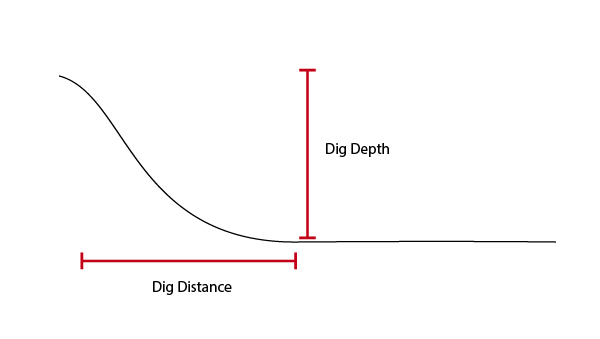
Dig Depth
How deep to dig down from the existing terrain data.
Dig Distance
The distance of the transition of the dig from the edge.
Once generated, you should see your meshes load up in the 3D preview area. You can click to select individual meshes and edit the surface settings per item once generated.