Creating Meshes
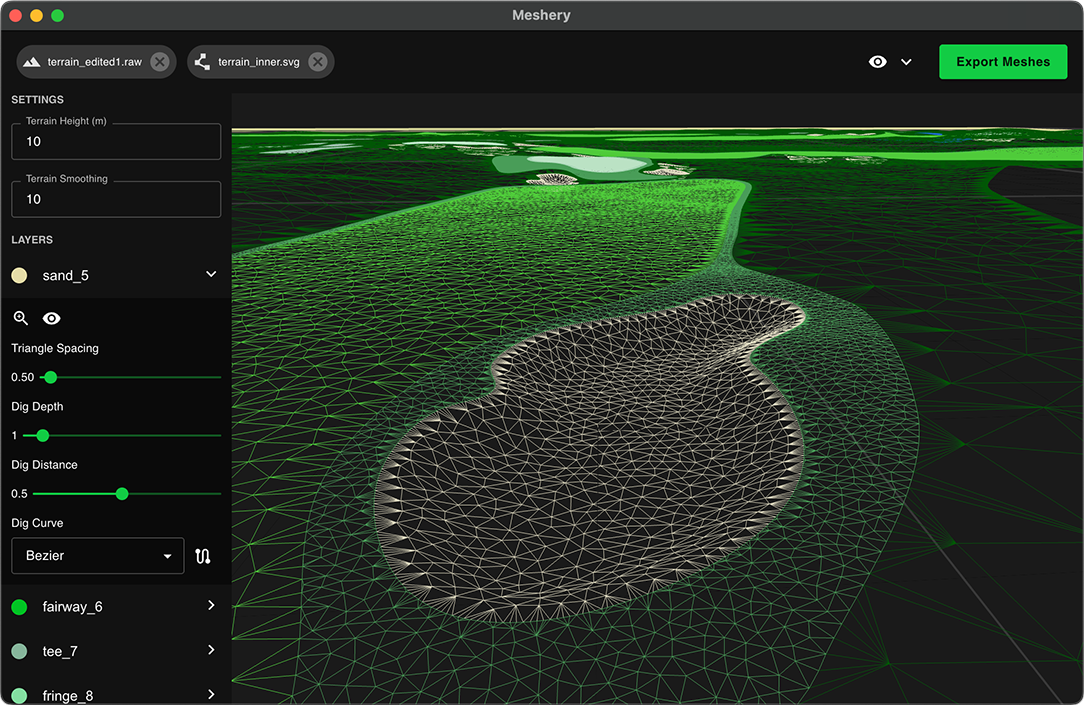
Import Files
-
Download and open the Meshery tool.
On Windows, you may get a warning from Microsoft Defender. Click More info and then select Run anyways
-
Click the Import RAW Terrain button and locate the raw terrain data file you created in the Course Terrain step.
-
Click the Import SVG button and locate the SVG file you created in the Course Map step.
-
Set the Terrain Height value to the same thing as your Terrain Height in Unity.
To find your terrain height
-
Click the terrain object in your scene.
-
Click the Terrain Settings tab in the Inspector on the right.
-
Scroll down to your Terrain Size section and you should see Terrain Height
-
-
In Meshery you can optionally set a Terrain Smoothing value for you terrain, to smooth out any rough / bumpy terrain. For more fine grained control, consider editing and smoothing your terrain in Unity and exporting a new RAW file for Meshery.
Digging
You can adjust the dig settings at the time of import, or on individual shapes after import. By default Meshery will dig bunkers, rivers, and lake beds a bit lower than your terrain, to ensure they have some depth to them.
Vertex Painting
For more advanced users, you can enable vertex shading / blending. Which will add blue or red vertex colors to the inner or outer edges of a shape. This will let you use custom material blending. Note: this still a relatively new feature, so experiment with caution!