Exporting Meshes
To get your meshes from Meshery into Unity we’ll export an OBJ file containing all your new meshes and then import that OBJ file into your Unity project. These meshes will sit just above or replace your terrain layer. Make sure you’re using the latest project template and have the OpenGolfSim Developer Toolkit package, which should include a tool for importing and batch assigning base materials to your meshes.
Export from Meshery
-
Once you are satisfied with your meshes in Meshery, click the Export Meshes button.
-
Save the OBJ file to your course terrain folder.
Import Into Unity
-
In your Unity project, go to Tools > OpenGolfSim > Import Meshes
-
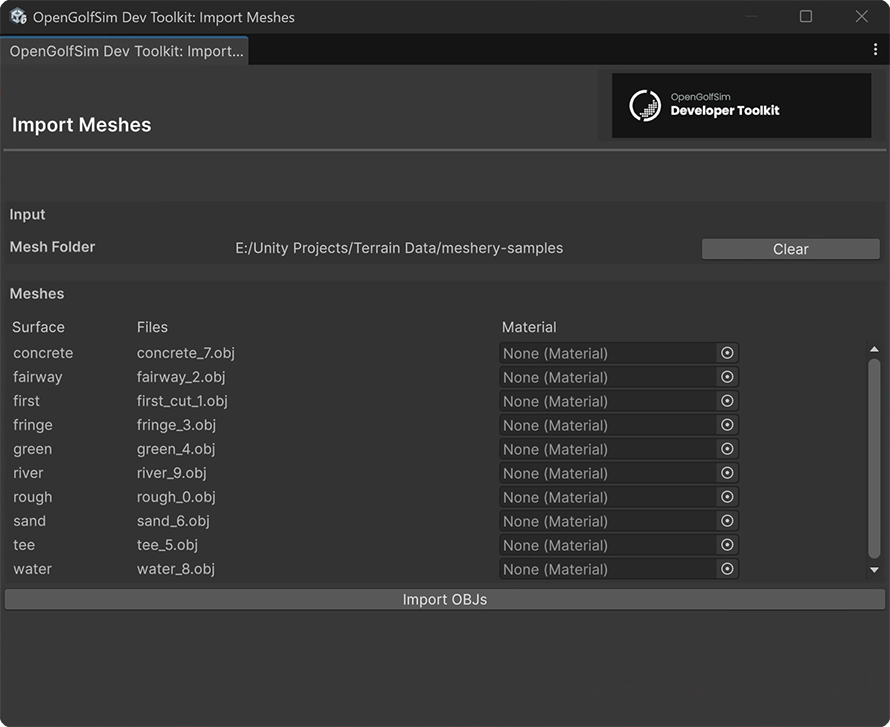
Click the Select Folder button and locate the folder on your computer that was created by the Course Meshery tool.
-
At this point you can batch assign materials like grass and sand to your course surfaces.
-
Click the Import OBJs button and wait for the script to automatically import the course meshes to your scene.
-
Once the task finishes, you should see a new parent game object with the name of your file.
-
After import, you’ll likely need to reposition the parent game object to sit above the terrain by offsetting the Y position to be above the terrain.