Export Course Map
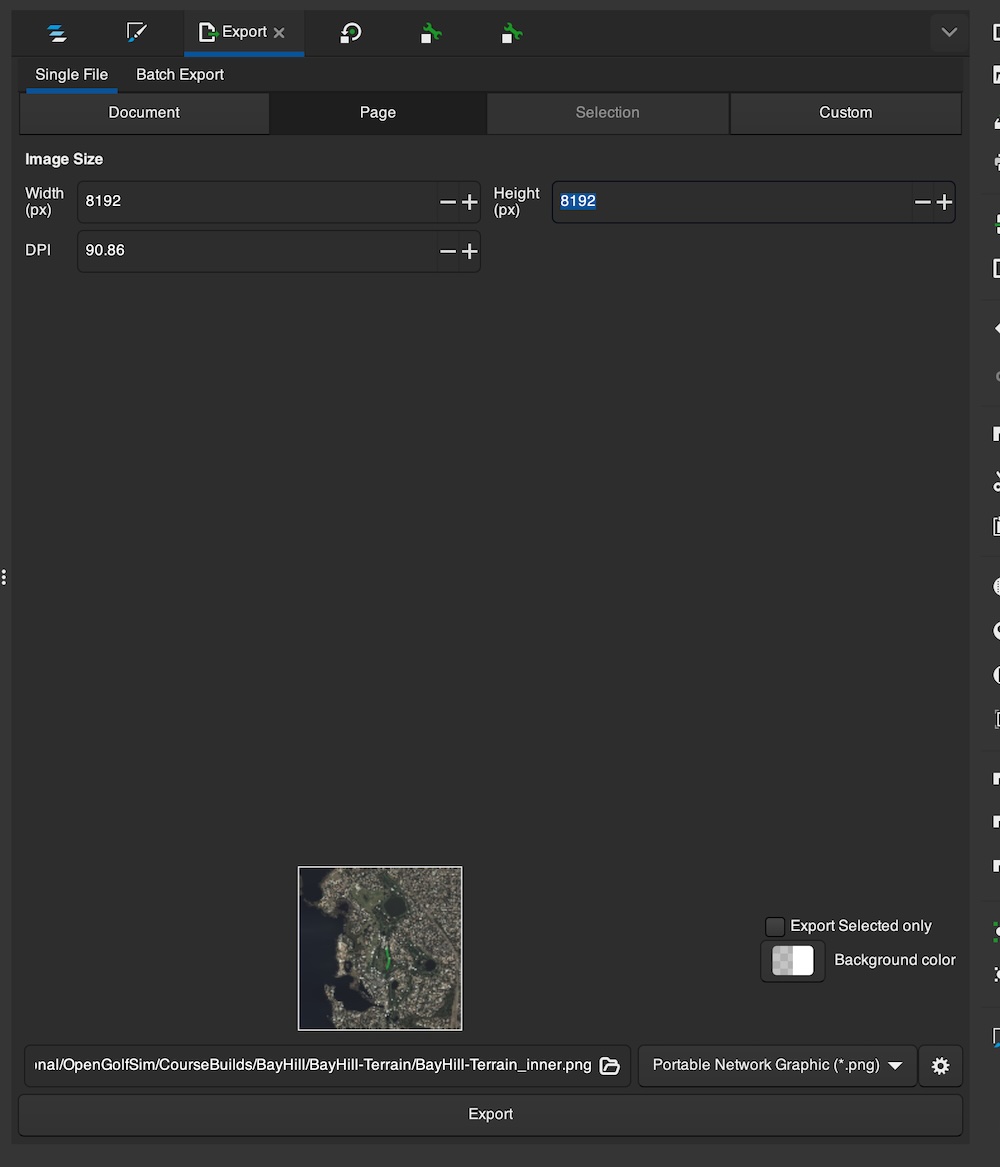
It is sometimes helpful to view your drawn course map on your terrain in Unity. To do this, you’ll need to export a high resolution image of your course from Inkscape.
-
In Inkscape, select File > Export
-
Make sure export is set to Single File and that Page is selected
-
Set the Width and Height to
8192 -
Select the location to save the image.
-
Click Export
In Unity
To view the newly created course map image on your terrain, you’ll need to import it to your Unity project and set it as the terrain texture, scaled to the terrain size.
-
Drag the exported image file into your Unity project assets
-
Select the image file to bring up the Inspector
-
In the Inspector, set:
- Max Size:
8192 - Select Apply
- Max Size:
-
Select your Terrain object in the scene.
-
In the Inspector, open Paint Terrain, then select Paint Texture
-
Create a new Terrain Layer
-
Under Terrain Layers, select Edit Terrain Layers > Create Layer
-
Select the image asset and assign it to the layer.
-
Set both the X and Y values for Size under Tiling Settings to the same as your terrain size. (e.g. 1200 x 1200)
-
-
Unity will create a Terrain Layer using the selected image as the Diffuse texture.